How can we help?
Everything KozaChat can do, and where to find it. Search above, or pick a topic.

Getting started
Make an account, start a server and invite your people.

Chatting
Formatting, stickers, files, polls, threads and timers.

Friends and DMs
Group chats, message requests, encryption and calls.

Voice
Talking, rooms, stages, whisper, watching YouTube together and screen sharing.

Running a server
Channels, groups, calendars, forms, roles, welcome messages and Discover.

Moderation and safety
Mod tools, raid protection, reporting and blocking.

Your profile
Pictures, banners, widgets, badges and the Style Shop.

Apps and bots
Add bots and apps to your server, or make your own.
Settings and account
2FA, notifications, accessibility, languages and your data.
Welcome to KozaChat
KozaChat is free group chat for you and your people: servers with text and voice channels, DMs and group chats, and screen sharing. There are no ads and no tracking, and you only need an email to join.
The four places you'll use most
- The server bar along the top shows your servers. The chat bubble at its start opens your DMs and friends.
- The channel list on the left shows a server's channels. Text channels start with #, voice channels have a speaker.
- The chat in the middle, where messages show as bubbles. Yours sit on the right.
- Your bar at the bottom left: your picture and status, mute, deafen, and the Settings button.
Your first five minutes
- Make an account with your email.
- Make a server, or join one with an invite link.
- Send the invite link to your friends.
- Click a voice channel to start talking. Click it again, or the red button, to leave.
- Make it yours: add a picture in Settings › Profile.
Tip: press Ctrl + K to jump to any server, channel or DM by typing its name.
Making an account
All you need is an email address and a password. No phone number, no ID, no real name.
- Go to kozachat.com/app and choose Sign up.
- Pick a username, enter your email and a password.
- We send you an email to confirm it's yours. You can start chatting right away; a small banner reminds you until you confirm.
Why confirm your email?
It lets you reset a forgotten password, and some things need it: listing a server in Discover, asking for a Verified badge, and the developer portal.
Forgot your password?
On the log-in screen, choose Forgot password. We email you a link to set a new one.
Your password is stored scrambled, so nobody at KozaChat can read it. We'll never ask you for it.
Making or joining a server
A server is a home for one group: your friends, a class, a game community. It has its own channels, roles and members.
Make a server
- Click the + button in the server bar.
- Give it a name and, if you like, a picture. You can change both later.
- KozaChat makes a text channel and a voice channel to start with.
Invite people
Every server has an invite code, shown under its name at the top of the channel list. Click it to copy the link. You can also make links that expire, and owners can pick one custom link, like kozachat.com/invite/goat-pen, in Server settings › Invites.
The server's Home page
Click Home under the server name (above the invite code) for a quick catch-up: the newest announcement, what's coming up (click All events for the rest), who's in voice right now and channels worth checking out. A number on Home means events are coming up; LIVE means one is on now.
People who can manage the server can make it their own in Server settings › Home (or Customize on Home): add a welcome note at the top, pick which channel the news comes from and which channels to show, hide sections, or turn Home off (the button then just opens the events list).
Join a server
Open an invite link someone sent you, or click the join button (the arrow) in the server bar and paste the link or code. You can also browse public servers in Discover.
Coming from Discord
- Copy your server's setup: when making a server, choose Import from Discord and paste a Discord server template link. KozaChat builds the same roles, categories and channels. (Messages don't come across.)
- Bring your people: turn on a moving page in Server settings › Invites. It's a public page that welcomes your community and joins them in one click. Post its link in your old server.
Server folders
Drag a server onto another to put them in a folder. Give folders a name and color. On a phone, hold a server and choose Reorder servers.
KozaChat on every device
Your account, servers and messages are the same everywhere. Use whichever fits.
Windows
The Windows app adds taskbar badges, starting with Windows, push to talk inside games, and showing what you're playing. It updates itself, and every update is signed and checked before it installs.
iPhone
Get KozaChat on the App Store (free, iOS 18 or newer). It has notifications, encrypted DMs and calls, and voice channels. Your recovery code unlocks your encrypted messages on it the first time.
You can also open kozachat.com in Safari, tap Share, then Add to Home Screen.
Android
Open kozachat.com/app in Chrome and tap Install (or ⋮ then Add to Home screen).
Mac, Linux and anything else
KozaChat runs in any modern browser at kozachat.com/app. Nothing to install.
Tip: when KozaChat gets an update, open pages show KozaChat was updated · Reload. See what's new in Settings › App.
Messages and formatting
Type in the box at the bottom and press Enter to send. Shift + Enter starts a new line. On phones, use the Send button.
Do more with a message
Hover a message (or hold it on a phone) to reply, react, edit, forward it to another chat, pin it, or delete it. Right-click it for everything else, like copying a link to it or reporting it.
Replying to several messages
Press Reply on more than one message and each one is added above the box, up to 5. Your message then shows one line like "Replying to Ana, Ben and 1 more"; click it to see them all. Remove one with the × on its chip.
Long messages
Messages can be up to 10,000 characters. Very long ones are folded to about 15 lines in the chat, with Show more to read the rest.
Mentions
@name pings a person, @role pings everyone with that role.#channel links a channel, so people can jump to it. In a server with groups, the list shows which group each channel is in; picking one from another group writes it like #minecraft:general.
Linking a channel
Right-click a channel (or open its menu) and choose Copy link. Paste it anywhere in KozaChat and it shows as a neat #channel tag instead of a long link; clicking it takes people straight there, switching to the right group. Opened in a browser, the link opens KozaChat at that channel.
Formatting
Select text to get the formatting bar, or type the marks yourself:
| Type | To get |
|---|
**bold** | bold |
*italic* | italic |
__underline__ | underline |
~~strike~~ | strike |
||spoiler|| | hidden until clicked |
`code` and ```block``` | code |
> quote | a quote |
Finding things
The buttons at the top of a chat open search, pinned messages and files. Edited messages say so; moderators can see what a server message said before.
Voice messages
Say it instead of typing it. Voice messages work in DMs, group chats and server channels, up to 5 minutes long.
- With the message box empty, click the microphone next to the smiley.
- Talk. You'll see the time and a level meter while it records. The first time, your browser asks to use your microphone.
- Click send, or the bin to throw it away. Esc throws it away too.
Listening
Press play, or click anywhere on the waveform to jump there. The button on the right switches between 1×, 1.5× and 2× speed. Starting one voice message pauses any other.
Good to know
- In DMs and group chats, voice messages are end-to-end encrypted like everything else there.
- In servers, it takes the Send voice messages permission. Server owners can turn it off for a role or a channel.
- Like other files, voice messages are kept for 30 days.
Emojis, stickers and GIFs
The smiley button in the message box opens one picker with three tabs: Emojis, Stickers and GIFs.
Stickers
Everyone has the KozaChat sticker pack. Servers can upload up to 30 of their own (PNG, GIF or WebP) in Server settings › Stickers. You can use a server's stickers anywhere you share that server with someone.
Custom emojis
Servers add their own emojis, including moving GIF emojis, in Server settings › Emojis. Like stickers, they work anywhere you share the server.
GIFs
Search GIFs in the GIFs tab. A GIF you pick waits in the box, so you can add a message before sending. GIF searches go through our server, so the GIF site never sees who you are.
Uploading emojis, stickers and sounds needs the Manage emojis permission.
Pictures and files
Drag files into the chat, paste them, or use the + button and Upload files. Up to 10 files per message, 10 MB each. See Limits and sizes for the rest.
- Pictures show right in the chat. Click one to see it full size.
- Spoilers: before sending, click the eye on a file to mark it as a spoiler. It shows blurred under a "Spoiler" label until someone clicks it. Works for pictures, videos and other files, in encrypted chats too.
- Videos (MP4, WebM and MOV) play right in the chat too. In encrypted chats, tap a video to unlock and play it on your device.
- Links straight to a video file show a play button. Nothing loads from the other site until you press it.
- The files button at the top of a chat lists every picture and file shared there, with a jump to the message.
- In DMs and group chats, files are end-to-end encrypted like the messages. Encrypted files don't show in the files list.
Polls, threads and scheduled messages
The + button in the message box has Create a poll and Schedule a message.
Polls
Ask a question with a few answers and let people vote. Polls work everywhere, and in encrypted chats the question and answers stay encrypted too.
Threads
Start a thread from a message to take a side conversation somewhere else. It opens in a panel beside the chat, so the main chat stays tidy. Threads work in server text channels and group chats.
Scheduled messages
Write a message now and pick when it sends. Your scheduled messages show above the box, where you can change or cancel them. Scheduling is for text only.
Disappearing messages
Give any channel, DM or group chat a timer, from five minutes to a month. When a message's time runs out, it's deleted from our server too, and from our backups within two weeks.
- Set it with the hourglass button at the top of the chat. Each message shows how long it has left.
- In a server, changing a channel's timer needs permission to manage that channel.
- Want it on every new conversation? Set a default in Settings › Privacy › Disappearing messages in new conversations.
Anyone can still take a screenshot. A timer keeps chats tidy, it can't stop someone saving what they saw.
Friends and message requests
Open the chat bubble at the start of the server bar to see your friends and DMs.
Adding friends
Send a friend request by username from the Friends page, or from someone's profile. You choose who can send you requests in Settings › Privacy: anyone who knows your username, people in your servers, or nobody.
Message requests
When someone who isn't your friend messages you, it lands in Requests instead of your DMs. They can send one message until you accept. Accept to start chatting, or deny and they won't be told. Requests are quiet: no notifications, no unread counts.
Decide who can start a conversation with you in Settings › Privacy: friends and people in your servers, anyone, or nobody.
Blocking
Block someone from their profile or by right-clicking them. See Reporting and blocking.
DMs and group chats
Talk one-on-one, or make a group chat for up to 10 people. Both are end-to-end encrypted.
Group chats
- Choose New group in your DMs and pick who to add.
- Give it a name and a picture, and add or remove people any time.
- Leaving takes you out; the chat carries on for everyone else.
Read ticks
Your messages show one tick when sent, two when everyone's app got them, and two colored ticks when everyone has read them. Hover to see who read it. Turn it off in Settings › Privacy › Read receipts; it works both ways, so you won't see other people's either.
Tidying up
Hover a DM in the list and click the × to close it. It comes back when someone sends a new message. New friends show at the top of your list.
Encryption and your recovery code
DMs and group chats are end-to-end encrypted: messages, files, polls and calls are locked on your device and only unlocked on the devices of the people in the chat. Our server only ever sees scrambled data.
Your recovery code
The first time you open KozaChat, it sets up your keys and shows you a recovery code. Save it somewhere safe, like a password manager.
- When you log in on a new device, it asks for the code so it can open your older encrypted messages.
- You can see a new code in Settings › Security.
If you lose your code, nobody can get your old encrypted messages back, not even us. New messages keep working normally.
What isn't end-to-end encrypted
- Server channels. They stay readable to the server so moderators, bots and search can work, and so big servers stay fast.
- Search can't look inside encrypted DMs.
Reports still work
If you report an encrypted message, your app sends that message and the 10 before it to our safety team, with a fingerprint that proves they weren't changed. See Reporting and blocking.
Calling in DMs
Press the call button at the top of a DM or group chat to ring the others.
- They get a pop-up with your picture, a ringtone and Join or Decline, plus a notification on their phone. You hear it ringing.
- If nobody answers in about 30 seconds, the chat shows a missed call.
- Calls have voice, cameras, screen sharing and a volume slider for each person.
- Calls are end-to-end encrypted with the chat's own key, so even the voice server can't listen.
- People on Do Not Disturb still see the pop-up, but quietly.
Voice channels
Voice channels are always open. Click one and you're in, talking with everyone there. There's no calling and no waiting.
The controls
- Mute and deafen are always in your bar at the bottom left, wherever you are.
- Click a person in the call to change how loud they are for you, from 0% to 200%.
- A green ring lights up around whoever is talking, the moment they start.
- The red button leaves the channel.
Status line
Once you're in a call, click Set a status for this call at the top of the room and say what's going on, like "Ranked grind" (up to 60 characters). Anyone in the call can change it. People outside see it under the channel's name, and it clears when everyone leaves.
There's more you can do in a call: rooms, stages and AFK, and whispering and watching YouTube together.
Sound settings
In Settings › Voice & audio:
- Pick your microphone, speakers and camera.
- Push to talk: only send your voice while you hold a key. In the Windows app it works inside games too.
- Noise removal takes out keyboards, fans and background noise.
Tip: people outside the call can see who's in a voice channel under its name, and a LIVE tag when someone is sharing their screen.
Rooms, stages and AFK
Ways to shape your voice channels. All of them are set by people who can manage channels, in a voice channel's settings (the gear next to it).
Join to create rooms
A "Join to create" channel gives everyone who joins it a voice room of their own, right next to it. It's great for busy servers: no more fighting over channels.
- Make a voice channel with a clear name, like "New room".
- Click the gear next to it and turn on Join to create.
- Now anyone who joins it gets their own room, named after them, with the same permissions as the channel they joined.
The person who made a room can click Room at the top of it to rename it, set a people limit, or lock it so nobody new can join. If they leave, the next person in the room takes over. When everyone has left, the room deletes itself.
People limit
Set People limit in a voice channel's settings to cap how many can be in it, up to 99 (0 means no limit). The channel list shows how full it is, like "3/5". People who can move members can always join.
Stages
Turn on Stage in a voice channel's settings for talks, Q&As and town halls.
- Only speakers can talk. Everyone else is in the audience and listens.
- People who can mute members start as speakers. Everyone else starts in the audience.
- Someone in the audience can Raise hand. Hands show at the top of the audience list.
- Moderators click Invite to speak to bring someone up, and Move to audience to send them back. Speakers can step down on their own with Join the audience.
AFK channel
In Server settings › Overview › AFK, pick a voice channel and a time from 5 minutes to an hour. Anyone who makes no sound in voice for that long is moved there, so they stop holding a spot in busy channels. Nobody can talk in the AFK channel.
Whisper and watch together
Two extras in server voice channels: talk to just a few people without leaving the call, and watch YouTube with everyone in sync.
Whisper
- In a call, click Whisper at the bottom.
- Tick the people, or the roles, you want to whisper to. Your picks are remembered for that server.
- Hold Hold to whisper. While you hold it, only they hear you. Everyone else still sees your camera and screen.
The people you whisper to see a purple ring around you and "… is whispering to you". You can also set a Whisper key in the same menu, so you can whisper by holding a key while KozaChat is the window in front.
You need to be unmuted to whisper. On a stage, only speakers can whisper.
Watch together
- In a call, click Watch together.
- Paste a YouTube link and press Watch together.
- The video opens at the top of the room for everyone in the call, playing at the same spot.
- Anyone in the call can pause, jump to another spot, change the video or stop it, and everyone follows.
- The volume slider is just for you. If you're deafened, the video is silent for you too.
- People who join later start where everyone else is.
- The video stops when everyone has left the call.
Videos play through YouTube's privacy-enhanced player, so YouTube doesn't set tracking cookies until you play something.
Screen sharing and cameras
In a voice channel or call, use the screen button to share a window or your whole screen, and the camera button to turn on your camera.
- Everyone in the call sees a live preview of each shared screen. Click one to watch it big, and Stop watching when you're done.
- The Windows app can share your screen's sound too. In a browser, it depends on the browser.
- Quality: in Settings › Voice & audio › Screen share quality, pick Standard (1080p, 15 frames a second, sharp text) or HD (1080p, 60 frames a second, smooth for games). HD uses about 3 times more internet, for you and everyone watching. You can also switch from the little arrow next to Share screen in a call, even while you're sharing. The button shows an HD tag while it's on.
- When video is on, the voice scene shrinks to a strip below it.
Voice scenes
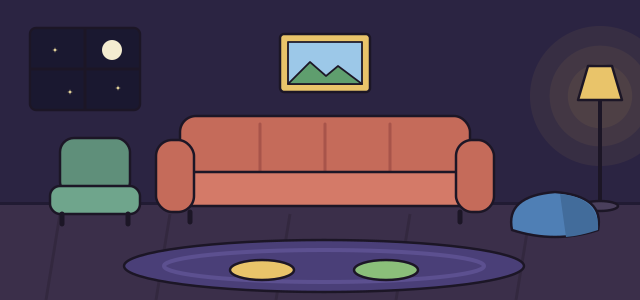
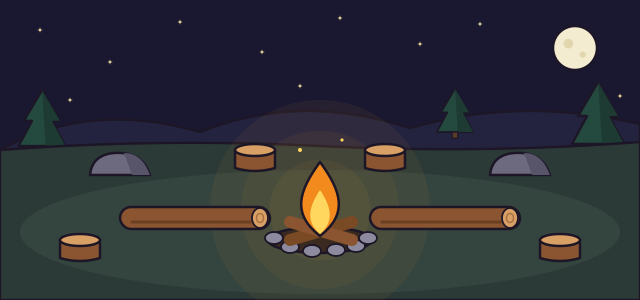
A voice channel can be a place to sit together: a Campfire, a Couch or a Desk. Everyone in the call sits in a seat, and the person talking lights up.
- Anyone in the call can switch the scene with the Scene menu at the top. Everyone sees the change.
- Prefer plain boxes? Choose Tiles.
- On narrow screens you see faces only, with names listed underneath.
- The little animations (the fire, the lamps, the stars) stop if you turn on Reduce motion.
DM and group calls always use tiles.
Soundboard
Play short sounds for everyone in a server voice channel with the Soundboard button.
- Servers upload up to 24 sounds in Server settings › Soundboard: MP3, OGG, WAV or WebM, up to 5 seconds and 1 MB each, with an emoji or a picture.
- Playing sounds needs permission to speak in that channel, and you can play 3 every 6 seconds.
- Too much? Turn it down, or off, in Settings › Voice & audio › Soundboard volume. People who are deafened don't hear sounds.
Channels and categories
Channels keep topics apart. Group them into categories, like "Voice" or "Game night".
Kinds of channel
Making and arranging
- Use the + next to a category to add a channel. You can make it private and pick which roles see it right away.
- Drag channels and categories to reorder them, in the channel list or in Server settings › Channels (by the handle on the left). On a phone, use Reorder above the channel list.
- Give a channel an icon: an emoji (your server's own too) or a small picture, in place of the #.
- Names can use any letters, symbols and fancy fonts.
- Big server? Split it into server groups, each with its own channels.
Channel settings
Click the gear next to a channel for its name, description (shown at the top of the channel, up to 300 characters), icon, slow mode (how often each person can post), the disappearing timer and its permissions. Voice channels also have a people limit, Join to create and Stage here.
Server groups
A group is like a server inside your server, with its own categories and channels. A gaming community could have Minecraft, Valorant and Staff groups, so each crowd sees just their own channels.
Using groups
- Groups show as a row of icons at the top of the channel list. Home is always first, with the server's main channels.
- Click a group to see its channels. Click Home to go back. The row only shows once a server has at least one group.
- You can mention and link channels from other groups too; see Mentions.
- Click the + at the end of the row to see every group you can join. Follow the ones you want, and their icons appear in the row. Leave one to hide it again.
- A dot on a group's icon means something new in one of its channels.
Making groups
People who can manage channels make groups in Server settings › Groups (or Groups in the server name menu):
- Give a group a name, an emoji or a picture, and a short description. To rename or change one later, right-click its icon (hold it on a phone) and choose Edit group.
- Turn on Only some people can see it and pick roles and people. Everyone else won't see the group or any of its channels, even with a link.
- Switch to a group, then use the usual + buttons: new channels and categories go into the group you're looking at. Moving a channel into a category moves it into that category's group too.
- Already have channels? Drag a channel or category onto a group's icon at the top of the channel list, or right-click a channel (hold it on a phone) and choose Move to group. In Server settings › Channels, the ⋯ button on any channel or category has Move to group too, or you can drag it onto a group's name.
- Change the order of the groups with the arrows.
- Archive a group to hide it from everyone except your team, with its channels and messages kept. Restore it any time.
- Deleting an archived group moves its categories and channels to Home, so nothing is lost.
A server can have up to 20 groups. People who can manage channels always see every group.
Announcement channels
For news, updates and patch notes. Posts show as big cards, and only the roles you allow can post.
- Pick Announcement when you make a channel and tick the roles under Who can post. Everyone else can read and react.
- Other servers can click Follow at the top of a public announcement channel and pick one of their text channels. Every new post is copied there.
- The channel's header shows how many channels follow it. A server that follows you can stop any time in that channel's webhook settings.
Forum and media channels
A forum is a channel of posts instead of one long chat. Each post has a title, tags and its own replies, so questions, ideas and bug reports don't get lost.
Making one
- Click the + next to a category and pick Forum.
- Open the channel's settings and go to Tags. Add up to 20 tags, like "Question", "Bug" or "Idea", each with an emoji if you like.
- Turn on Posts need a tag if every post should have one.
Posting
- Click New post, give it a title, pick up to 5 tags, and say more if you like.
- Open a post to read and reply. Replies can have pictures, files, voice messages and everything else a chat has.
- Whoever posted it, and moderators, can change its title and tags with Edit post.
Finding posts
Posts are sorted by latest activity, so a new reply brings a post back to the top. Switch to newest posts to see them in the order they were made, or click a tag to see only posts with it.
A media channel is a forum for pictures and videos, shown as a grid of thumbnails. Every post needs at least one picture or video (up to 4), and a title is optional. Click one to see it big and comment on it.
Importing a server from Discord turns its forum channels into KozaChat forums (without posts or tags).
Calendar and scheduling
Plan things and find a time that works for everyone.
Calendar channels
- A calendar channel shows a month, with that day's events listed beside it. Click a day to see what's on.
- Your server's events live in calendar channels. A server can have more than one, like "Game nights" and "Tournaments".
- Make a calendar private and its events are only seen by the roles that can see it.
- Add to my calendar on an event downloads it for Google Calendar, Outlook or Apple Calendar.
Scheduling channels
Stop asking "when is everyone free?" in chat.
- Open the scheduling channel. It shows the next two weeks in your own time zone.
- Paint the half hours you're free by dragging across them. Copy last week fills in your usual times.
- The darker a slot, the more people are free then. Best times lists the top picks.
- Choose a time and Make an event then. Everyone who's free gets invited.
Lists and docs
List channels
Shared to-do lists, like "Server ideas" or "Build projects".
- Type an item and press Enter. Tick it off when it's done.
- Give an item a person (they're notified), a due date (they get a reminder) and notes.
- Drag items under others to nest them, up to 3 levels deep.
- Every item has its own thread for talking about it.
- Up to 500 items, each up to 300 characters.
Docs channels
A shelf of pages your server writes together: rules, guides, FAQs, lore.
- Click New page and write. Use
# Heading, lists, --- for a line, and all the usual formatting.
- When you make the channel, tick the roles under Who can edit. Everyone else can read. Editing a page someone else wrote needs Manage messages.
- History keeps the last 50 versions of each page. If two people edit at once, KozaChat tells you instead of overwriting.
- Up to 100 pages per channel, each up to 50,000 characters.
Forms and applications
Staff applications, event sign-ups, ban appeals: forms your members fill in and your team reviews.
Making a form
- Make a Forms channel, open it, and click New form.
- Add a title, a description and up to 25 questions: short answer, long answer, multiple choice, checkboxes, dropdown, number, or yes or no. Any question can be required.
- Under Post answers in, pick a private staff channel.
- Optional: under When accepted, give, pick a role to hand out.
Reviewing answers
- Each answer arrives in your staff channel as a card, with Accept and Decline buttons and a thread to talk it over.
- Accepting can give the role you picked. Either way, the person gets a message from KozaChat, with your note if you add one.
- Each person can have one answer waiting per form. Once it's decided, they can fill it in again.
Making forms needs Manage channels. Reviewing needs Manage messages in the staff channel. A forms channel can hold up to 20 forms.
Roles and permissions
Roles decide what people can do. Make them in Server settings › Roles.
- Everyone is the role every member has. Start there to set what all members can do.
- Each role has over 20 permissions, from sending messages to banning members.
- Roles are in order: higher roles outrank lower ones, and nobody can manage someone who outranks them. Drag roles in the list to change the order (on a phone, use Reorder). You can't move a role above your own highest one.
- Give a role a color, a two-color gradient, and even an animation. Inside a server, the role color replaces someone's own name color.
- Show members separately lists that role in its own group in the member list.
Per-channel permissions
In a channel's settings, allow or deny permissions for a role or a person in just that channel. Making a channel private hides it from everyone without a role you pick.
Server settings
Click the server's name at the top of the channel list for its menu and Server settings. The pages are sorted under six headings.
Server
- Overview: the name, picture, banner and description (pictures can be cropped when you upload them), the server tag members can wear next to their name, and the AFK channel.
- Home: what the server's Home page shows: a welcome note, the news channel, the channels to check out and which sections appear.
- Invites: make links that expire, choose your server's custom link, and turn on the moving page for communities coming from Discord.
- Discovery and Verification: see Discover and Verified servers.
Channels & roles
Channels, Groups and Roles.
Expressions
Your server's own Emojis, Stickers and Soundboard.
Community
Welcome & alerts, New members and the Apps you've added.
Moderation
Raid protection, Filters, Bans and the Mod log.
Owner
Ownership: hand the server to someone else, or delete it.
You see only the pages your roles allow. Owners see everything.
Welcome messages and alerts
Set both up in Server settings › Welcome & alerts.
Welcome messages
Pick a channel and write a welcome, like "Welcome @user to Goat Pen! Read #rules and say hi." Members get a Wave button on it to send the newcomer a sticker hello. You can also turn on goodbye messages for people who leave.
Mod alerts
Pick a channel for KozaChat's automatic alerts: raid protection stepping in, moderator actions (kicks, bans and timeouts, with the reason) and very new accounts joining. Who sees the alerts follows that channel's own permissions, so make it private for your mods.
New member setup
Greet people who join with your server's rules and a few questions. Set it up in Server settings › New members (it needs Manage server).
What newcomers see
- A welcome, with your server's picture and a few words from you.
- Your rules, and a box to say they'll follow them.
- Your questions, like "What do you play?", with answers to tap.
Until they finish, they can look around the channels they can see, but they can't post.
Answers give roles
Each answer can give up to 3 roles. Since roles decide which channels people see, this is also how answers open up channels: make a "Minecraft" role that can see your Minecraft channels, and give it to everyone who answers "Minecraft".
- Up to 15 rules and 5 questions, each with up to 10 answers.
- A question can allow one answer or several, and can be optional.
- Answers can only give roles below your own highest role, and never a bot's own role.
Turning it on only asks people who join from then on. Everyone already in the server carries on as before.
Events
Plan movie night, a tournament or a study session. Home under the server name shows what's coming up (with a count, or LIVE while one is on); All events there lists every event, and each event lives in a calendar channel.
- Give an event a name, a time and a description, and link a voice channel so people can join it from the event.
- A scheduling channel can make an event at the time most people are free, and invite them.
- Members click Interested to get a reminder when it starts.
- Events can repeat every week, and can post an announcement card in a channel.
Making events needs the Manage events permission.
Discover: listing your server
Discover is where people find public servers. Open it from your DMs list, under Friends.
Listing your server
Turn on Show in discovery in Server settings › Discovery. Your server shows up right away if it has:
- a description and a picture,
- an owner who has confirmed their email,
- at least 3 members.
Add a category, up to 5 tags and a language so the right people find you.
Peek before joining
Tick Visitors can peek on channels you want people to read before they join. They can read, not post.
18+ servers can be listed behind an "I'm 18+" click, and can't be peeked. Our staff can hide any server that breaks the rules.
Verified servers
A Verified badge tells people a server is the real one. Owners ask for it in Server settings › Verification.
To ask, you need
- two-factor login turned on, and a confirmed email,
- a server that's at least 30 days old,
- at least 50 members (bots don't count).
Verified servers get the checkmark everywhere, show first in Discover, and can get a reserved invite link from our staff. Renaming a verified server removes the badge until our staff check the new name.
The gold Official badge is only for KozaChat's own servers.
Moderation tools
Give your mods a role with just the permissions they need. Everything they do lands in the mod log.
Dealing with someone
- Click a person (or right-click them) to time out, kick or ban them. You can add a reason.
- Mod view on their profile card shows when they joined, how many messages they've sent, their past mod actions, their recent messages and private mod notes your team can leave.
- Moderators can see what an edited message said before.
Quick commands
Type these in any channel's message box. They do the same as the buttons, need the same permissions, and only you see the answer.
| Command | Does |
|---|
/kick, /ban, /unban | remove someone, ban them, or lift a ban |
/timeout, /untimeout | time someone out, or end it early |
/purge | delete the last messages in the channel (up to 100), or just one person's |
/slowmode | set the channel's slow mode |
/lock | stop new people joining the server, or let them in again |
Keeping things calm
The record
Server settings › Mod log lists every kick, ban and timeout, who did it and why. Server settings › Bans lists bans, where you can lift them.
Raid protection
Turn on any of these in Server settings › Raid protection.
- Join-wave pause: when lots of people join at once, new joins pause for an hour and your mods get an alert.
- New-account limits: keep out accounts that are too new or haven't confirmed their email, and make new members wait up to an hour before posting (people with a role don't wait).
- Spam stop: blocks mass mentions and floods, and times out the sender for 10 minutes.
- Lock server: a button for when things go wrong. Nobody new can join, and people who joined in the last 24 hours can't post, until you unlock it. Mods can also type
/lock in any channel.
While protection is active, a red tag shows under the server name. Automatic actions show in the mod log as done by raid protection.
Word and link filters
Stop messages with words, links or invites you don't want in your server. Set them up in Server settings › Filters.
Three kinds of filter
- Blocked words: words and phrases. Capitals and accents don't matter. Whole words only, unless you add a
*: spam* also stops "spammer".
- Links: stops links, except to the sites you allow (like
youtube.com). Leave the list empty to stop every link.
- Invite links: stops invites to other servers, on KozaChat or Discord. Your own server's invites still work.
What happens
- The message is never posted, and the sender sees which filter stopped it.
- It's written in the mod log: who, where, and what matched. Never the whole message.
- Each filter can also time them out (5 minutes to a day) and post in your mod alerts channel.
- Filters check new messages, edits, scheduled messages and polls.
Who isn't filtered
The owner and anyone who can manage messages, so your team can talk about what a filter caught. Each filter can also skip roles and channels you pick.
Tip: use Try a message at the bottom of the page to test your filters before members run into them.
A server can have up to 10 filters, with up to 300 words each.
Reporting and blocking
If someone or something breaks the rules, report it. Reports go to KozaChat's safety team, not to the server's mods.
Reporting
- Right-click (or hold) a message, a person or a server and choose Report.
- Pick what's wrong and add anything that helps.
- For encrypted DMs, your app sends the reported message and the 10 before it, with a fingerprint that proves they're real. Nothing else from the chat is shared.
Blocking
Block someone from their profile or by right-clicking them. They can't message you or send you friend requests.
More ways to stay in control
- Choose who can message you and send friend requests in Settings › Privacy.
- Messages from people who aren't your friends wait in Requests.
- Mute a server, channel or person to stop notifications without leaving.
Your profile
Click anyone's picture to see their profile card. Edit yours in Settings › Profile.
- Picture and banner, cropped when you upload them. GIFs move when someone hovers them.
- Shape: show your picture as a circle or a rounded square. Everyone sees it your way.
- Profile colors, pronouns, an about me and links.
- Widgets: show your favorite game, the games you play and more.
- Server tag: wear a tag from one of your servers next to your name.
Connections
Show your Steam, Twitch and GitHub accounts on your profile card, with a check that proves they're yours. In Settings › Connections, click Connect and sign in on that site. KozaChat never sees that password, and only keeps your name and link there. Hide or disconnect them any time.
A different look in each server
Use the Editing menu at the top of Settings › Profile to switch from "My profile" to a server. There you can set a different picture, banner, colors, about me, pronouns and Style look that only that server sees.
Your status
Click your picture in your bar to set Online, Idle, Do Not Disturb or Invisible, and a status message.
The Style Shop
Free looks for your profile. Open the Style Shop from your DMs list, under Friends. There's no money and no catch.
What's in it
- Avatar decorations that sit around your picture.
- Nameplates behind your name in member lists and DMs.
- Name styles: fonts, colors and moving gradients.
- Profile effects and frames for your profile card.
Claiming and wearing
Click Claim to add something to your Collection, then wear it. Seasonal collections are only in the shop for a while, but anything you claimed stays yours to wear.
Make your own
In My creations, upload your own decoration, nameplate, effect or frame (PNG or GIF) with a live preview. Our staff take a look; once approved, it goes in the Community collection for everyone, with your name on it. If it isn't approved, you'll see why and can fix it and send it again.
Badges
Badges are little enamel pins on your profile card. You earn them by being around.
- Early member: one of the first people on KozaChat.
- Server founder: started a server.
- Community builder: owns a big server.
- One-year member: has been on KozaChat for a year.
- App developer: made a bot or app that's listed in the App Store.
- Staff (silver rim): works on KozaChat.
Hide any badge you'd rather not show in Settings › Badges.
Showing what you're playing
The Windows app can show the game you're playing, or the song on Spotify, next to your name. It's off until you turn it on in Settings › Activity.
- Games are found on their own, including ones from Steam, Epic, Riot and other launchers. You can add your own too.
- Spotify songs come from the Spotify app on your PC. There's no Spotify login.
- Your activity is never saved. It's only shared while you're online, and hidden when you're invisible.
Browsers and phones can't see what else is running, so this is Windows app only.
The App Store
Add bots and apps to your server. Open the App Store from your DMs list, under Friends.
Bots and apps
- Bots join your server like a member: they answer /commands, post cards with buttons and menus, and can welcome people or moderate.
- Apps have their own screens and live in an app channel, like the official Minecraft app with its console, live map, linked accounts and mods.
Adding one
Pick a bot or app, choose a server you manage, and check what it asks to do. You decide which permissions it gets, and you can change them later in its role or in Server settings › Apps.
Kept safe
- Nothing is listed in the App Store until our staff have reviewed it.
- Reading every message in a server needs an extra approval from our staff.
- Bots can never listen to voice.
- Every listed bot and app is free.
Making bots and apps
Build your own at the developer portal. Sign in with your KozaChat account; you need a confirmed email and two-factor login.
- No code: the Builder makes a whole bot from blocks you link together on a canvas: commands, buttons, words in messages, joins and timers start things; messages, cards, DMs, roles and timeouts do things; checks, cooldowns and waits decide. Bots can remember values like XP or coins per person, with leaderboards. Try it in the Test chat as you build (the blocks light up as they run), start from a template or share your own, then download it to run in JavaScript or Python.
- Code: starter bots in JavaScript and Python, examples to download, a full API reference and a live event log to test with. The starters come with easy helpers for roles, members, channels, kicks, bans and timeouts, threads and events, plus simple events for reactions, people joining and leaving, and voice. That's all you need for levels, starboards, welcome roles or ticket bots.
- Webhooks: let other services post into a channel.
- Apps with screens: upload your app's screens; your own server runs the logic.
Your bot works right away in a few servers you manage. To list it in the App Store for everyone, send it for review from the portal.
Password, 2FA and accounts
Settings › Security has your password, two-factor login and your encryption recovery code.
Two-factor login (2FA)
- Install an authenticator app, like Google Authenticator, Microsoft Authenticator or 2FAS.
- In Settings › Security, turn on two-factor login.
- Scan the QR code. On a phone, tap Open in my authenticator app or copy the key instead.
- Type the 6-digit code it shows to finish.
Tip: typing the key by hand? It has no zeros, only the letter O.
Switching accounts
Click your picture in your bar and choose Switch account to keep up to 5 accounts logged in on one device and hop between them.
Security emails
We email you when your password or email changes, so you know if it wasn't you.
Notifications and Do Not Disturb
You're notified about DMs and mentions. Choose the rest in Settings › Notifications.
- Mute a server, channel or DM from its right-click menu.
- Phones and the Windows app get notifications even when KozaChat is closed. Browsers ask first.
- The Windows app shows its own pop-ups in the corner of your screen. Click one to open the chat, or answer straight from it with quick reply. They stay quiet while you're using KozaChat, and when you're on Do Not Disturb.
- Turn the voice sounds (joining, leaving, muting) on or off.
Do Not Disturb, with exceptions
Do Not Disturb silences everything, except what you choose. Right-click a person, server or channel and choose Allow on Do Not Disturb. Your exceptions are listed in Settings › Notifications.
Themes, accessibility and languages
Appearance
In Settings › Appearance: Dark, Midnight or Light, your own two-color theme, and how roomy the chat is.
Accessibility
Settings › Accessibility is saved on each device:
- message text size, from 12 to 24
- reduce motion, high contrast, and status dots with shapes for color blindness
- easy-to-read fonts: Atkinson Hyperlegible and OpenDyslexic
- underlined links, times on every message, and a strong focus outline
- screen readers announce new messages
Languages
KozaChat speaks English, Español, Français, Deutsch, Português (Brasil), Українська and Русский. It follows your device the first time; change it in Settings › Language.
Your data
It's yours. Take it with you or delete it, any time, in Settings › Account.
- Download your data: everything we have about you, in one file.
- Change your email.
- Delete your account. If you own servers, hand them to someone you trust first.
What we keep and why is in the privacy policy, in plain words.
Questions and answers
Is KozaChat really free?
Yes. Every feature, every Style Shop item and every App Store listing is free. There are no ads, and we don't sell data.
Why no phone number or ID?
Because we don't need them to run your chats. The less we keep, the less there is to leak or sell.
Windows says "Windows protected your PC"
Windows says this about new apps it hasn't seen much yet. Choose More info, then Run anyway. Every KozaChat update is signed and checked before it installs.
Can KozaChat read my messages?
Not your DMs or group chats: they're end-to-end encrypted. Server channels aren't, so moderation, bots and search can work.
I lost my recovery code
New messages keep working, but older encrypted messages can't be opened on a new device. Get a new code in Settings › Security and keep it safe.
How do I move my community from Discord?
Import your setup with a Discord template link, then share a moving page. See Coming from Discord.
Is there a Mac app?
Not yet. KozaChat works in any browser on a Mac in the meantime.
Who can see I'm online?
People you share a server or a chat with. Set yourself to Invisible to appear offline.
Limits and sizes
Every limit in one place: how big uploads can be, and how many of each thing you, a server or a chat can have.
Files and pictures in chats
| What | Limit |
|---|
| One file | 10 MB |
| Files in one message | 10 |
| Voice message | 5 minutes |
| Uploads per person per day | 300 MB in total |
| Link previews per message | 3 |
Profile and server pictures
Still pictures are cropped and shrunk for you when you upload them, so any normal photo works. Moving GIFs are kept as they are, so they have a size limit:
| Picture | Moving GIF up to |
|---|
| Profile picture | 4 MB |
| Profile banner | 8 MB |
| Server banner | 8 MB |
| Custom emoji | 1 MB (still: 256 KB) |
| Sticker | 2 MB (still: 512 KB) |
| Soundboard picture | 1 MB (still: 256 KB) |
| Style Shop creation | 4 MB (still: 1 MB) |
Server pictures, group chat pictures and channel icons are still pictures only.
A server
| What | Up to |
|---|
| Roles | 50 |
| Categories | 50 |
| Custom emojis | 50 |
| Stickers | 30 |
| Soundboard sounds | 24, each up to 5 seconds and 1 MB |
| Events | 200 |
| Server groups | 20 |
| People in a voice channel | no limit, unless you set one (up to 99) |
| Forms | 20 per forms channel, with up to 25 questions each |
| List items | 500 per list channel, nested up to 3 deep |
| Doc pages | 100 per docs channel, each keeping its last 50 versions |
| Bots | 50 |
| Invite links | 100 |
| Pinned messages | 50 per channel |
| Webhooks | 10 per channel (each posts up to 30 messages a minute) |
| Discover tags | 5 |
| Channels visitors can peek at | 5 |
| Word and link filters | 10, with up to 300 words each |
| Tags in a forum | 20 (up to 5 on each post) |
| New member setup | 15 rules, 5 questions, 10 answers each |
There's no limit on members or channels.
You
| What | Up to |
|---|
| Servers you're in | 100 |
| People in a group chat | 10, you included |
| Accounts on one device | 5 |
| Scheduled messages | 25 |
| Server folders | 50 |
| Favorite GIFs | 200 |
| Profile links | 5 |
| Profile widgets | 6 |
| Style Shop creations waiting for review | 3 |
Text
| What | Length |
|---|
| Message | 10,000 characters (bots: 2,000) |
| Messages you reply to at once | 5 |
| Username | 3 to 32: letters, numbers, _ and . |
| Password | at least 8 characters |
| Display name and nickname | 32 |
| Pronouns | 40 |
| About me | 190 |
| Status message | 80 |
| Server name | 100 |
| Server description | 300 |
| Server tag | 2 to 4 letters or numbers |
| Custom invite link | 3 to 32: letters, numbers and dashes |
| Channel and category names | 50 |
| Channel description | 300 |
| Voice call status | 60 |
| Server group name | 40 (description: 200) |
| List item | 300 |
| Doc page | 50,000 |
| Role name | 32 |
| Forum post title | 100 |
| Poll | a 300-character question and up to 10 answers of 80 |
| Event | a 100-character name and a 1000-character description |
Reactions, timers and moderation
| What | Choices |
|---|
| Different reactions on one message | up to 20 |
| Disappearing messages | 5 minutes, 1 hour, 1 day, 1 week or 1 month |
| Slow mode | 5, 10 or 30 seconds, 1, 5 or 15 minutes, or 1 hour |
| Timeouts | 1, 5 or 10 minutes, 1 hour, 1 day or 1 week |
| Invite links expire after | 30 minutes, 1, 6 or 12 hours, 1 day, 7 days, or never |
| Invite links can be used | 1, 5, 10, 25, 50 or 100 times, or without limit |
| Mod notes | 50 per person |
| Soundboard | 3 sounds every 6 seconds |
/purge | up to 100 messages at a time |
| AFK move after | 5, 15 or 30 minutes, or 1 hour |
Developers
| What | Up to |
|---|
| Bots and apps per developer | 25 |
| Servers a bot can join before it's in the App Store | 10 |
| /commands per bot | 50 |
| Saved Builder drafts | 25 |
| App screens upload | 300 files, 10 MB |
Feedback and support
Found a bug, or have an idea? Tell us in Settings › App › Feedback.
- Add a screenshot if it helps.
- Your feedback is private: only KozaChat's staff see it.
- You'll see where it's at (received, planned, in progress, fixed or added) and any reply from us.
To report someone breaking the rules, use Report instead, so our safety team sees it straight away.